
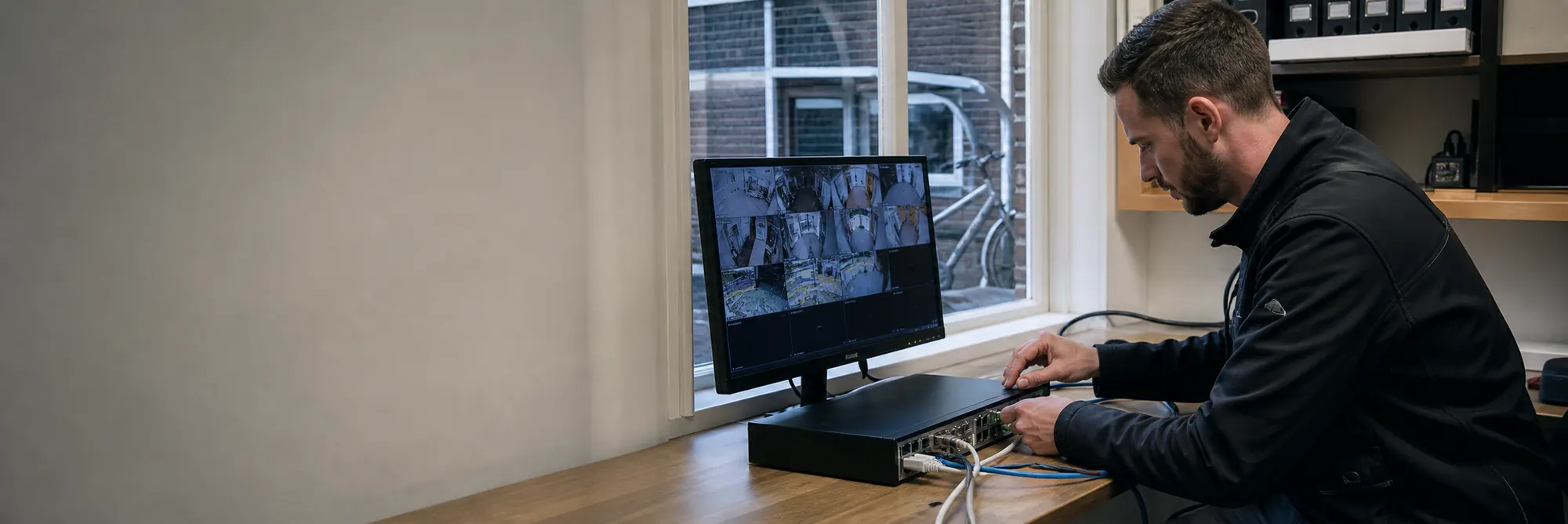
Camera system not recording: targeted troubleshooting

Disruptions and settings

Camera system not recording: targeted troubleshooting

Only live view but no recording? Check date, storage status, schedule and event settings without unnecessarily deleting existing camera images.

IP Camera Installatie: More than 2,000 businesses helped. View our projects · Read customer reviews

Fixed price in advance Installation on site Prefer to talk first? 085 - 02 12 771
Camera system not recording: targeted troubleshooting
Home›Services›Camera system not recording: targeted troubleshooting

What is included

Find out why live footage doesn't appear on the timeline

You see the camera live, but when you look back, the clip is missing. This could be due to the recording schedule, storage, date, or the chosen search filter. The live view only proves that there is a video stream at that moment. Therefore, check step by step whether new recordings are actually being written and where they are displayed.

  • Choose the correct camera, date and time zone when looking back
  • Check the disk or memory card status before making changes
  • Continuous and event recording are distinguished from each other
  • Create a new test fragment and search back in the timeline
  • Preserve important existing images during research
01

Step 1: exclude a search problem

First, choose the correct camera and date and check the recorder's clock. An incorrect time zone can display a clip at an unexpected time. If necessary, only remove the search filter, not the recordings. Check if your account has permissions to rewind and if you are searching in the correct storage source.

02

Step 2: check the storage status

A disk may be missing, a fault reported, or not yet set up for the device. Note the status message. Initializing or formatting can remove existing images; do not do this as a general first solution. When recordings must be kept, we will first discuss export or retention and then any replacement or setup.

03

Step 3: check schedule and event

For continuous recording, the channel must be activated at the desired times. For event recording, both detection and recording action must be properly set up. A motion alert does not automatically mean that a fragment is also saved. We test the complete chain with a clear movement and then look for the result.

04

Evaluate recovery with a new recording

After a change, we check a new segment, including playback and export. Only a green disk status is insufficient proof that the correct channel is recording. In case of recurring errors, we evaluate log messages, storage health, and compatibility. When reporting a malfunction, indicate when you last saw a working recording.

Regional coverage

Camera system does not record in your area

We also travel throughout the Netherlands for Investigation into missing camera recordings. Choose a city to see how we plan an installation there.

View service area →

Clear answers

Frequently asked questions

Why do I see live footage but no saved video?

Live view and recording are different features. Check the search date, permissions, storage status and recording schedule to determine where it is missing.

Do I need to format the hard drive if the recording doesn't work?

Without knowing what is on the screen and why the error occurs, formatting can erase existing images; first, let the status and settings be evaluated.

Does a movement notification also mean there is an recording?

Not necessary. Detection, recording action, and schedule must align with each other. Test this with a real event and then check whether the fragment plays.

AddedView →